

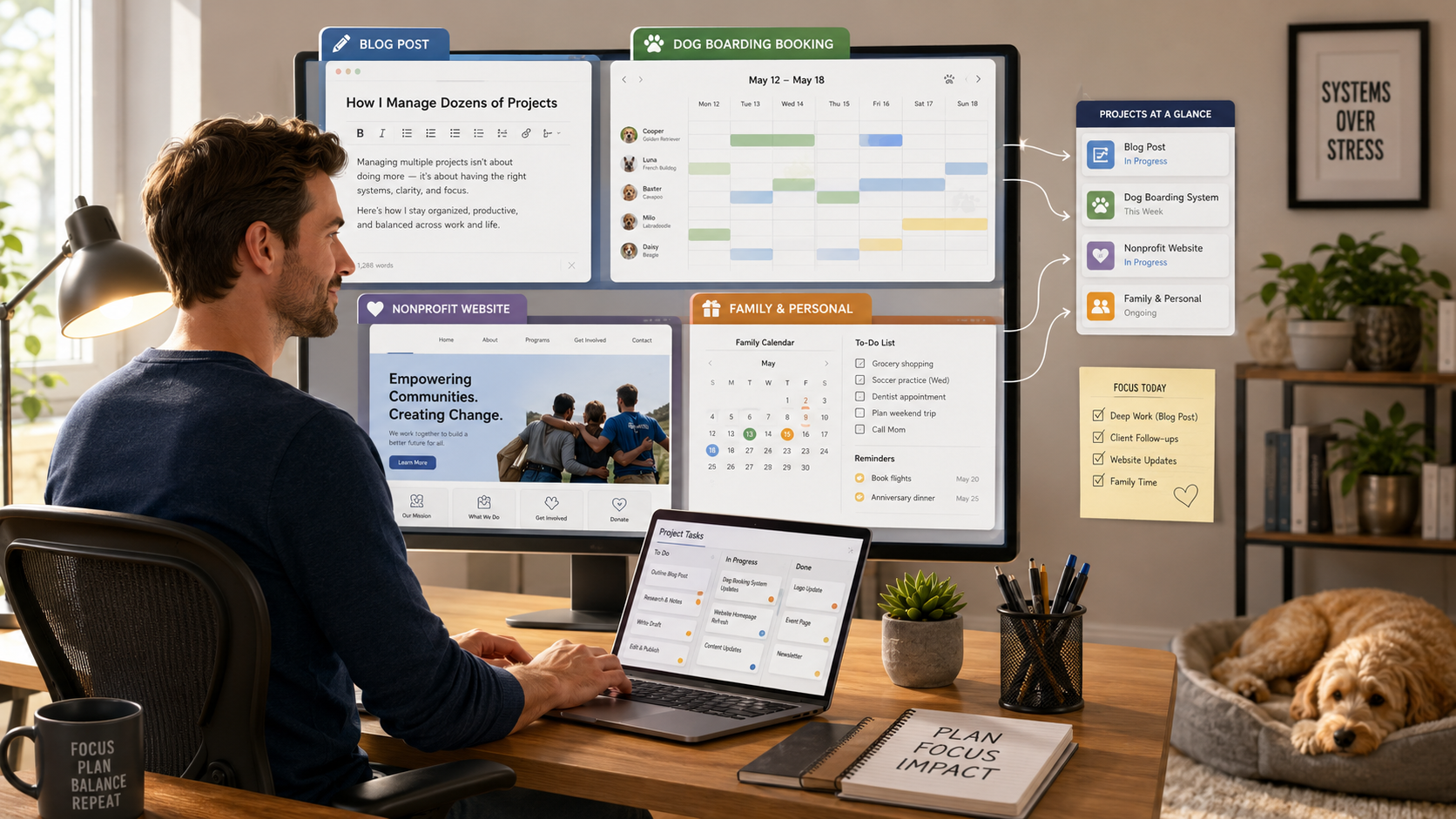
I’ve mentioned before that I have ADHD. I seem to be managing at least a dozen completely different priorities at any time. Also, I can’t seem to say “No!” to adding new projects. I get bored with the current one, and the new ones are always more exciting.
You’re probably thinking, “Cool story, about your brain, bro.” That’s okay, I’m guessing there are a few of you out there who are the same way. Our society moves faster and faster every day. I’d like to blame it all on smartphones and TikTok, but I think it’s deeper than that. I find that as soon as I learn something about AI, it’s obsolete by the start of the next week.
Today, I thought I’d switch from personal finance to productivity. I don’t think it is a big departure; the two are intertwined. Much of my work is done on a computer, so that’s going to be my specific focus. To give it a little more of a financial focus, I’ll explain how it might save me hundreds on my next computer.

The Most Important Digital Tool: Your Web Browser
My web browser accounts for about 98% of my computer’s app usage. Some people use mail programs and office suites, but I use Google’s tools: Gmail, Docs, Sheets, etc. They are all browser-based.
I manage several different projects at any given time. Each of these has its own space, with its own workflows:
- Lazy Man and Money – This has its own browser window with Gmail, writing app*, social media apps, WordPress, and approximately 600 browser tabs of stories that I intend to read and write about someday. I’m not exaggerating. It is literally hundreds and hundreds of tabs.
- Personal – This is a generic window that handles most of my personal life. It has its own Gmail, Calendar, Docs, Sheets, Google Messages for Web, Google Voice, and… another few hundred tabs of non-financial articles that don’t fit into the Lazy Man and Money profile.
- My Dog Boarding Business – This has the same Google suite of apps, but also my mailing list website, my Grasshopper (virtual phone) account, and the website/WordPress dashboard
- My Local Small Business Group – I develop a lot of projects for that group. I created an event system, a job board, and some apps that track how much business we refer to each other. I run all the technology, so it’s not just those, but the website, mailing list, and a bunch of other stuff.
- Kid Wealth – I have all the blogging links of Lazy Man and Money, but for my Kid Wealth website. I don’t go into this space much anymore, because it wasn’t worth slowing down my computer since few people visit the website.
It’s hard to log in to multiple G Suite accounts and apps at the same time. It can get confusing quickly. To keep all these spaces isolated, I created separate Firefox Profiles for each. I realize I’m one of the few people using Firefox, but Google Chrome has profiles too. The rest of this article will use my experience with Firefox, but please stick with me. Once you get the concepts, you should be able to apply them to the browser of your choice.
This works well for organization, but when I had more than 2 profiles open, my computer would freeze. I have a very powerful laptop with 64GB of memory, but it was no match for all this. Of course, having nearly a thousand browser tabs was a key problem.
Limiting the Number of Browser Tabs
It may sound easy to just say close them, but that causes me a ton of mental stress. I’m a digital hoarder, and I know it.
One solution I found was the OneTab browser extension. It opens all open tabs and lists them in a single browser tab. This is a good solution, because I can feel like I haven’t lost the “very important” information that I will (never) need. I would run this every couple of months to refresh my system. It works, but things get progressively slower until I declare bankruptcy and run this.
A few months ago, I found a complementary solution called unloading tabs. I could select all tabs and choose “unload tabs” from a context menu. This would essentially do the same thing as OneTab, but it wouldn’t delete the tabs – just the memory it uses. In the last month, I found the Auto Tab Discard extension. This automatically unloads tabs that you haven’t used after about 10 minutes. It works beautifully, and having a thousand browser tabs no longer slows down my computer.
Limiting the Number of Firefox Profiles
Having all those profiles was great for organization, but it means that I’m not running one Firefox, but five separate Firefoxes. If one Firefox process takes 7GB of memory (which is typical), then five of them take 35 GB. That’s not efficient. I still run some non-browser apps, so my computer can once again slow down.
While learning about Auto Tab Discard, I also learned about Firefox Multi-Account Containers. These work almost exactly like profiles, allowing me to segregate different areas of my life. The difference is that these use a single Firefox process, so adding a new workspace doesn’t use another 7GB of memory. The only downside is that I can’t have different extensions for each workspace. That’s a bonus for me, though, because I no longer have to think about whether I have all the right extensions in all my profiles.
It took a little work to make Multi-Account Containers work like profiles. Specifically, if I’m in my Lazy Man and Money container and open a new tab, I want that tab to be in the same container. Firefox assumes no container much of the time. It took me about an hour to figure it out, but once I installed the Multi-Account Containers and Sticky Window Containers extensions, it worked perfectly.
Dealing With All Those Tabs
This is still a work in progress. My plan is to dump them into Google’s NotebookLM. That’s an AI that can digest a lot of material and do some cool things with it. I’ve only used it briefly, but the podcast and mindmaps are useful. Ideally, I could find some way to roughly sort them into various areas such as health, technology, finance, etc. That would help me identify targeted areas to use.
If any readers are doing anything like this, please leave a comment or contact me.
Final Thoughts
From a financial perspective, making my computer run more efficiently is a HUGE win. I’ve been tempted to buy a Framework laptop that would let me upgrade and replace parts as they break over time. However, I’ve put off that decision because buying 64GB of memory to match the computer. You’ve probably read the news, but AI companies are buying up all the RAM, so prices have gone up from $250 to around $750-$800. Making my current RAM run more efficiently can hopefully help me wait until the memory supply picks up.
This article went into the nuts and bolts of Firefox, but many of the same concepts will work with your browser of choice. To come up with similar optimizations, you may have to spend some time with an AI app. If you spend a lot of time in a web browser, it is worth it.
As I was writing this, a voice in my head screamed, “Just change your habits!” It’s really hard to change yourself. I have some ideas on how to do that, which I might share in a future article.
I’ll leave you with one final piece of irony. One of the reasons why I stick with Firefox is that I don’t like the idea of one company controlling my technology experience. I do realize how silly it may sound to avoid Google Chrome and still use a dozen of its products, as I covered above.
* I’m currently using Simple Note as my writing app. I only like how it syncs everywhere. It has some major problems in managing many articles. It also doesn’t support Cut and Paste keyboard shortcuts. It’s inexcusable. If you have any suggestions for something better, I’m all ears.